
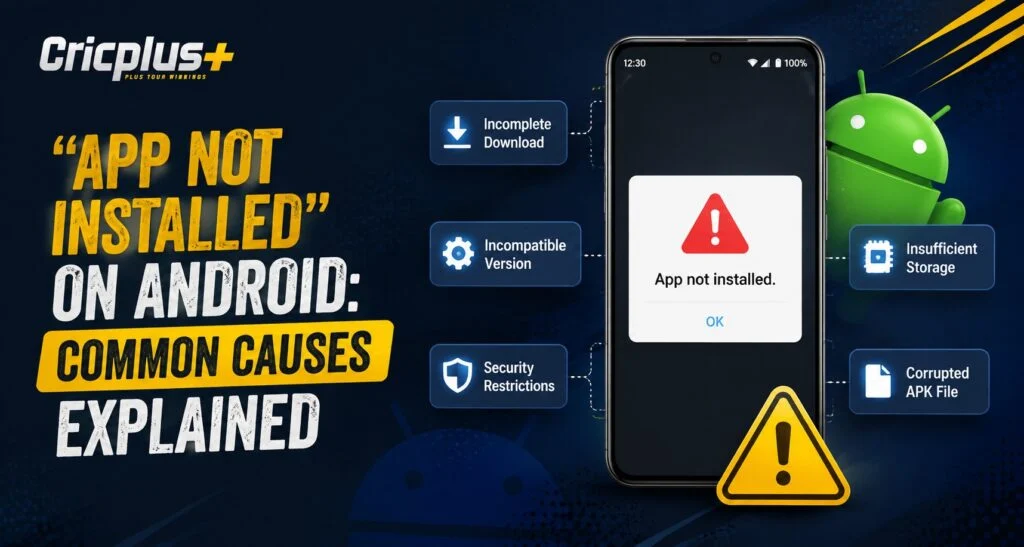
Android users sometimes face the frustrating “App Not Installed” message while trying to install an application. This issue can happen due to several reasons, including storage limitations, security settings, incompatible files, or device restrictions. For cricket fans exploring digital platforms, Cricplus offers organised access to cricket-related features, but understanding common Android installation problems can help users manage app installations more smoothly.
The “App Not Installed” error does not always mean there is a problem with the application itself. In many cases, the issue is connected to device settings, file compatibility, or previous versions of the same application. Identifying the exact cause is the first step toward solving the problem.
Why Does Android Show the “App Not Installed” Error?
Android devices use different security checks before allowing an application to install. If any requirement is not fulfilled, the system may prevent installation and display an error message.
Some common reasons include:
- Insufficient storage space.
- Corrupted installation files.
- Unsupported app versions.
- Security restrictions.
- Conflicts with existing applications.
Understanding these reasons can help users troubleshoot the problem without unnecessary complications.
Low Storage Space Can Prevent App Installation
One of the most common causes of installation failure is limited storage availability. Even if a device shows some free space, Android may require additional storage for temporary installation files.
Before installing a new application, users should:
- Check available storage space.
- Remove unused files or applications.
- Clear unnecessary cache data.
- Restart the device before trying again.
Maintaining enough free storage improves overall device performance and reduces installation-related issues.
Incompatible Android Version
Every application has minimum system requirements. If an app is designed for a newer Android version but the device uses older software, installation may fail.
Compatibility issues can occur because of:
- Outdated Android operating systems.
- Unsupported device architecture.
- Missing system updates.
- Hardware limitations.
Keeping the device software updated can Help users access newer applications with fewer problems.
Corrupted or Incomplete APK Files
When installing applications manually through APK files, the installation package must be complete and reliable. A damaged or incomplete file may cause Android to reject the installation.
Possible reasons for APK problems include:
- Interrupted downloads.
- Damaged files.
- Incorrect file versions.
- Untrusted download sources.
Users should always obtain application files from reliable sources and avoid modified or unknown packages.
Existing App Conflicts
Sometimes an older version of an application can create installation conflicts. Android may prevent installation when a new version does not match the existing app signature.
Common solutions include:
- Removing the previous version.
- Restarting the device.
- Installing the updated version again.
- Checking whether the application already exists.
Users should ensure that important data is backed up before uninstalling any application.
Security Settings Blocking Installation
Android includes security features that protect users from unsafe applications. If installation settings do not allow apps from certain sources, the process may be blocked.
Users can review:
- Device security settings.
- Permission options.
- Installation preferences.
- Unknown source permissions.
Security settings should always be adjusted carefully to maintain device safety.
How to Fix the “App Not Installed” Problem
Users can try several basic troubleshooting steps before looking for advanced solutions.
Recommended methods include:
- Restart the Android device.
- Check available storage space.
- Delete damaged installation files.
- Update the Android operating system.
- Remove conflicting older versions.
- Download the correct app version.
Following these steps can solve many common installation errors.
Importance of Using Compatible Mobile Applications
A smooth mobile experience depends on choosing applications that work properly with the device. Well-optimised apps are designed to provide better performance, easier navigation, and improved reliability.
Users accessing cricket-related platforms through Cricplus Login should ensure that their device meets the required technical conditions. Using updated software and maintaining proper storage can improve application performance.
Mobile Cricket Experience and App Performance
Modern cricket platforms focus on providing users with convenient mobile access. Features like live updates, match information, and organised content require applications that work smoothly across different devices.
The Cricplus App is designed for users who prefer mobile-based access to cricket features. Through options like Cricplus Live, users can stay connected with match-related information, while Cricplus Pro provides additional platform capabilities for those looking for an enhanced experience.
Tips to Avoid Future Installation Issues
Preventing app installation problems is easier when users follow good device management practices.
Helpful tips include:
- Keep Android software updated.
- Maintain enough free storage.
- Download apps from trusted sources.
- Regularly clear unnecessary files.
- Avoid installing unknown modified versions.
These simple steps can improve device security and reduce technical problems.
Conclusion
The “App Not Installed” error on Android can happen because of multiple reasons, including storage issues, compatibility problems, corrupted files, or security restrictions. Identifying the actual cause makes troubleshooting much easier.
By maintaining updated software, using reliable application sources, and managing device storage properly, users can enjoy a smoother mobile experience. Whether accessing cricket content or other digital services, proper app installation practices help ensure better performance and reliability.
Frequently Asked Questions
Why does Android show “App Not Installed”?
Android may display this error because of storage problems, incompatible software, corrupted files, or security restrictions.
How can users fix the “App Not Installed” error?
Users can try clearing storage, checking compatibility, removing older versions, and downloading a reliable installation file.
Can low storage cause app installation failure?
Yes, insufficient storage is one of the most common reasons Android prevents new applications from installing.
Is updating Android software helpful for app installation?
Yes, updating the operating system can improve compatibility with newer applications.
What is Cricplus App used for?
Cricplus App provides mobile access options for users who want to explore cricket-related features and digital content.
How can users avoid future app installation problems?
Keeping devices updated, maintaining storage space, and using trusted sources can help prevent installation errors.